
How to Set Up 9Xtream IPTV on Amazon Fire TV Stick (2026 Installation Guide)
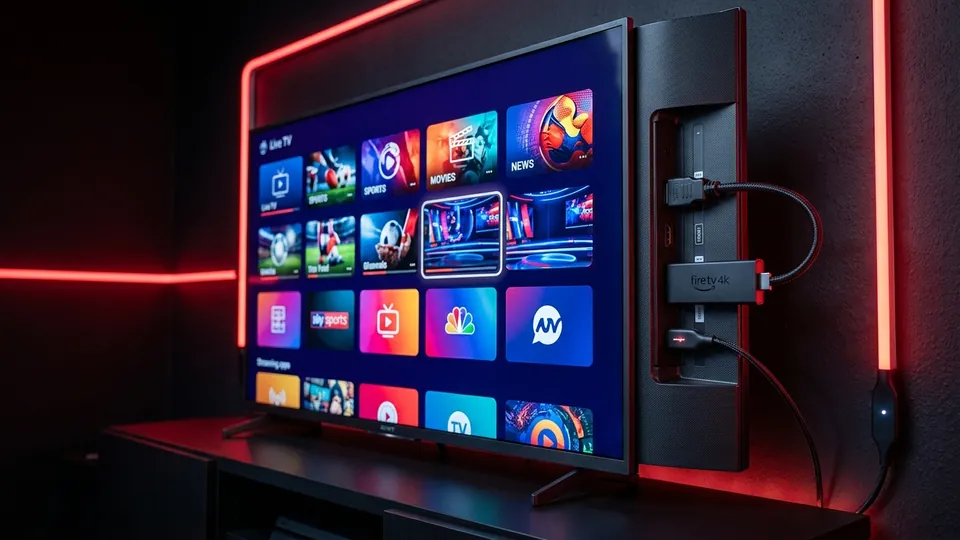
Amazon's Fire TV family—including the Fire TV Stick Lite, Fire Stick 4K, 4K Max, and Fire TV Cube—remains the undisputed gold standard for streaming live television and cord-cutting. With native hardware decoding for H.265 (HEVC) and AV1 video formats, Fire OS effortlessly streams high-bitrate 4K UHD and ultra-smooth 60 FPS sports broadcasts.
Connecting your 9Xtream IPTV subscription to an Amazon Fire Stick requires zero technical expertise and takes under four minutes from start to finish. In this step-by-step masterclass, we will walk you through enabling developer options, downloading your preferred media player via Downloader, entering your Xtream Codes API credentials, and optimizing playback caches for zero buffering.
Article Directory
1. Enabling Developer Options on Fire OS 2. Installing the Downloader Utility 3. Setting Up 9Xtream Player or TiviMate 4. Entering Your Xtream Codes Server Credentials 5. Anti-Buffer Network & Player Cache Tuning 6. Frequently Asked Firestick Questions1. Enabling Developer Options on Fire OS
To install top-tier streaming clients like 9Xtream Player or TiviMate, you must first permit Fire OS to load apps outside the standard Amazon Appstore. Amazon hides this toggle by default on newer software versions, but unlocking it is simple:
- From your Fire TV home screen, navigate right to the Settings (gear icon).
- Scroll down to select My Fire TV (or Device & Software).
- Click on the About section at the top.
- Highlight your device name (for example, Fire TV Stick 4K) and click the Select (center button) on your remote 7 times consecutively. A message will appear on screen: "No need, you are already a developer."
- Press the Back button once. You will now see the previously hidden Developer Options menu.
- Click into Developer Options, select Install Unknown Apps, and ensure it is ready to enable permissions for Downloader.
2. Installing the Downloader Utility
The official Downloader application by AFTVnews is the safest, most trusted utility for installing Android streaming packages directly to your TV.
- Return to your Fire TV Home screen, select Find, and choose Search.
- Type Downloader into the search field or use Alexa voice search on your remote.
- Select the orange Downloader application icon and click Get / Download to install it for free.
- Once installed, launch Downloader and select Allow when prompted to grant storage access permissions.
- Go back to Settings > My Fire TV > Developer Options > Install Unknown Apps and toggle Downloader to ON.
3. Setting Up 9Xtream Player or TiviMate
You can choose between two outstanding applications: the custom 9Xtream Player or the renowned TiviMate IPTV Player. Both provide rapid channel switching, complete EPG listings, and modern 4K playback engines.
- Open Downloader and click into the URL text bar on the home tab.
- To install TiviMate, enter the direct shortcode
278077and hit Go. - To install 9Xtream Player or IPTV Smarters Pro, enter
app.9xtream.storeor code250931and click Go. - Downloader will fetch the application package. When the download completes, click Install on the bottom right.
- After installation completes, click Done, then select Delete on the APK prompt to free up valuable internal flash storage on your Fire Stick.
4. Entering Your Xtream Codes Server Credentials
9Xtream utilizes the ultra-fast Xtream Codes API standard, which automatically parses channels, categorizes video-on-demand releases, and populates the TV guide.
- Launch your installed player app and choose Add Playlist (or Login with Xtream Codes API).
- Enter any friendly playlist name, such as
9Xtream 4K. - Fill in your credentials as sent to your WhatsApp inbox:
- Server URL: Input the custom portal URL provided in your activation message.
- Username: Your unique subscriber username.
- Password: Your secure account password.
- Click Next / Add Playlist. The app will sync your live TV channels, VOD movies, television series, and EPG schedules automatically.
5. Anti-Buffer Network & Player Cache Tuning
To ensure flawless 60 FPS sports playback and zero freezing during high-traffic Sunday broadcasts, apply these expert configuration tweaks:
- Adjust Buffer Size: Inside your player settings (under Playback > Buffer Size), select Medium or Normal (3–5 seconds). Over-inflating buffer size creates channel switching latency, while zero buffer causes micro-stutter on jittery Wi-Fi.
- Select Hardware Decoder: Verify that Hardware Acceleration (HW+) is activated for both Live TV and Video on Demand. This offloads video rendering to the Fire Stick GPU, eliminating frame drops.
- Prioritize 5GHz Wi-Fi: If connecting over Wi-Fi, ensure your Fire TV connects to your router's 5GHz wireless band rather than the congested 2.4GHz band.
- Clear App Cache Regularly: Once a month, navigate to Settings > Applications > Manage Installed Applications, click your player, and select Clear Cache to keep memory fresh.
6. Frequently Asked Firestick Questions
Experience 9Xtream on Your Firestick Right Now
Get instant access to 28,000+ live stations and 140,000+ movies in 4K with our risk-free 7-day money-back guarantee.
View Subscription Plans →